Updating M3 Help Center Login Instructions
Updating M3 Help Center Login Instructions
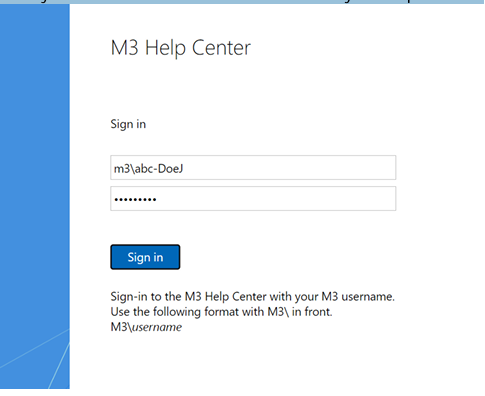
2. Enter your credentials as m3\abc-username and your M3 password.
3. It will take you to your profile page on the Help Center. Enter your First Name,
Last Name, Business Phone, Management Company or Property, Title, and
update your Role. Update the Email field to your desired Email address. This
must be completed to have your contact corrected on the M3 side. Then scroll
down and apply. If you receive a message that the Email is already used, enter a
secondary email address.
Related Articles
M3 MFA Enrollment Instructions
See PDF in attachments section.Marriott Fosse Historical Data Instructions
In the case that a Marriott property Night Audit transmission (from the Fosse PMS) wasn’t received or imported by M3. The GM would push a new file to M3 for them to interface using steps below. Fosse Historical Data Retrieval Instructions From the ...Updating the Budget/Forecast Workbook Addin Module
To update the Addin required to run the Bud/Fct workbook, please follow the instructions below.... YOU MUST HAVE ACCESS TO McKibbon Sharepoint. If you do NOT have access please contact the Support Team First, go get the updated BudFctAddin file from ...ADD PCI ITEMS IN QUORE - INSTRUCTIONS
ADD PCI ITEMS IN QUORE From the desktop Inventory app, click on the Item List page button. Find the +New Category button, under Go to Hotel button. Enter Department, Name, and Example. Then, click Add Category button. Department – Management Name – ...NEW - M3 Accounting Core Login Page
Effective @ November 30th, 2022 https://cloud.m3as.com